

搜索到
11
篇与
编程知识
的结果
-

-
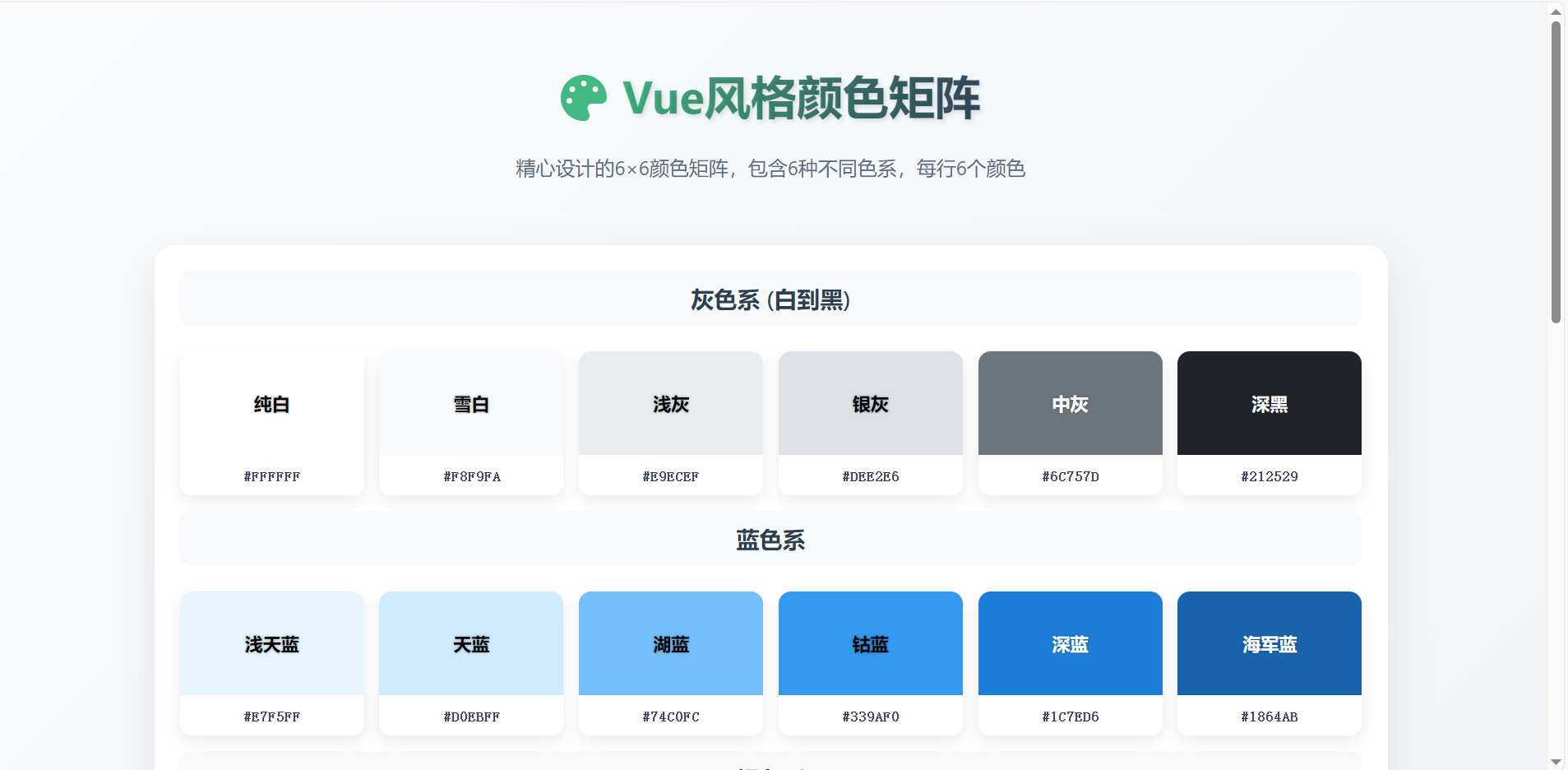
颜色展示网页 一个展示预设颜色的HTML页面,使用您提供的颜色预设数组,创建一个美观的颜色展示界面<!DOCTYPE html> <html lang="zh-CN"> <head> <meta charset="UTF-8"> <meta name="viewport" content="width=device-width, initial-scale=1.0"> <title>Vue风格颜色矩阵展示器</title> <link rel="stylesheet" href="https://cdnjs.cloudflare.com/ajax/libs/font-awesome/6.4.0/css/all.min.css"> <style> * { margin: 0; padding: 0; box-sizing: border-box; font-family: 'Segoe UI', 'Microsoft YaHei', sans-serif; } body { background: linear-gradient(135deg, #f8fafc 0%, #eef2f6 100%); min-height: 100vh; display: flex; flex-direction: column; align-items: center; padding: 40px 20px; color: #2c3e50; } .container { max-width: 1200px; width: 100%; } header { text-align: center; margin-bottom: 40px; padding: 20px; } .logo { display: flex; align-items: center; justify-content: center; gap: 15px; margin-bottom: 20px; } .logo-icon { font-size: 2.8rem; color: #42b883; } h1 { font-size: 2.8rem; margin-bottom: 5px; background: linear-gradient(90deg, #42b883, #35495e); -webkit-background-clip: text; background-clip: text; color: transparent; text-shadow: 2px 2px 4px rgba(0,0,0,0.1); } .subtitle { font-size: 1.2rem; color: #5a6c7d; max-width: 700px; margin: 0 auto; line-height: 1.6; } .color-grid { display: grid; grid-template-columns: repeat(6, 1fr); gap: 15px; margin-top: 20px; background: white; padding: 25px; border-radius: 20px; box-shadow: 0 15px 40px rgba(0,0,0,0.08); } .color-row-header { grid-column: 1 / -1; display: grid; grid-template-columns: repeat(6, 1fr); gap: 15px; margin-bottom: 10px; } .row-title { grid-column: 1 / -1; text-align: center; font-size: 1.4rem; font-weight: 600; padding: 12px; margin-bottom: 10px; border-radius: 10px; background: #f8f9fa; } .color-card { height: 140px; border-radius: 12px; overflow: hidden; box-shadow: 0 6px 15px rgba(0,0,0,0.08); transition: all 0.3s ease; cursor: pointer; position: relative; display: flex; flex-direction: column; justify-content: space-between; } .color-card:hover { transform: translateY(-8px); box-shadow: 0 12px 25px rgba(0,0,0,0.15); } .color-preview { flex-grow: 1; display: flex; align-items: center; justify-content: center; } .color-info { padding: 10px; background: rgba(255, 255, 255, 0.85); text-align: center; font-weight: 600; font-size: 0.9rem; } .color-hex { font-family: 'Fira Code', monospace; font-size: 0.85rem; } .copy-btn { position: absolute; top: 10px; right: 10px; background: rgba(255, 255, 255, 0.8); border: none; border-radius: 50%; width: 28px; height: 28px; cursor: pointer; display: flex; align-items: center; justify-content: center; opacity: 0; transition: all 0.3s; box-shadow: 0 2px 5px rgba(0,0,0,0.1); } .color-card:hover .copy-btn { opacity: 1; } .copy-btn:hover { background: white; transform: scale(1.1); } .copy-notification { position: fixed; top: 30px; left: 50%; transform: translateX(-50%); background: rgba(66, 184, 131, 0.9); color: white; padding: 12px 25px; border-radius: 8px; font-weight: 500; opacity: 0; transition: opacity 0.3s; pointer-events: none; display: flex; align-items: center; gap: 10px; } .copy-notification.show { opacity: 1; } .footer { margin-top: 40px; text-align: center; color: #5a6c7d; padding: 20px; font-size: 0.9rem; border-top: 1px solid #eaeaea; width: 100%; } @media (max-width: 992px) { .color-grid { grid-template-columns: repeat(3, 1fr); } } @media (max-width: 768px) { .color-grid { grid-template-columns: repeat(2, 1fr); } h1 { font-size: 2.2rem; } } @media (max-width: 480px) { .color-grid { grid-template-columns: 1fr; } h1 { font-size: 1.8rem; } } </style> </head> <body> <div class="container"> <header> <div class="logo"> <i class="fas fa-palette logo-icon"></i> <h1>Vue风格颜色矩阵</h1> </div> <p class="subtitle"> 精心设计的6×6颜色矩阵,包含6种不同色系,每行6个颜色 </p> </header> <div class="color-grid" id="colorGrid"> <!-- 颜色将通过JS动态生成 --> </div> </div> <div class="copy-notification" id="copyNotification"> <i class="fas fa-check-circle"></i> <span>颜色值已复制到剪贴板!</span> </div> <div class="footer"> <p>© 2023 Vue风格颜色矩阵 | 共展示 <span id="colorCount">36</span> 个预设颜色</p> </div> <script> // 颜色预设数组 - 6行每行6个颜色 const colorPresets = [ // 第一行:白色到黑色(灰色系) [ { hex: '#FFFFFF', name: '纯白' }, { hex: '#F8F9FA', name: '雪白' }, { hex: '#E9ECEF', name: '浅灰' }, { hex: '#DEE2E6', name: '银灰' }, { hex: '#6C757D', name: '中灰' }, { hex: '#212529', name: '深黑' } ], // 第二行:蓝色系 [ { hex: '#E7F5FF', name: '浅天蓝' }, { hex: '#D0EBFF', name: '天蓝' }, { hex: '#74C0FC', name: '湖蓝' }, { hex: '#339AF0', name: '钴蓝' }, { hex: '#1C7ED6', name: '深蓝' }, { hex: '#1864AB', name: '海军蓝' } ], // 第三行:绿色系 [ { hex: '#E6FCF5', name: '薄荷绿' }, { hex: '#C3FAE8', name: '春绿' }, { hex: '#96F2D7', name: '翡翠绿' }, { hex: '#40C057', name: '草绿' }, { hex: '#2F9E44', name: '森林绿' }, { hex: '#2B8A3E', name: '深绿' } ], // 第四行:紫色系 [ { hex: '#F3F0FF', name: '薰衣草' }, { hex: '#E5DBFF', name: '淡紫' }, { hex: '#D0BFFF', name: '紫藤' }, { hex: '#B197FC', name: '紫罗兰' }, { hex: '#845EF7', name: '皇家紫' }, { hex: '#5F3DC4', name: '深紫' } ], // 第五行:红色系 [ { hex: '#FFF5F5', name: '粉红' }, { hex: '#FFE3E3', name: '玫瑰红' }, { hex: '#FFC9C9', name: '珊瑚红' }, { hex: '#FF6B6B', name: '鲜红' }, { hex: '#F03E3E', name: '绯红' }, { hex: '#C92A2A', name: '深红' } ], // 第六行:其他色系(黄色、橙色、青色等) [ { hex: '#FFF9DB', name: '浅黄' }, { hex: '#FFEC99', name: '柠檬黄' }, { hex: '#FFD43B', name: '金黄' }, { hex: '#FFA94D', name: '橙黄' }, { hex: '#FF922B', name: '橙红' }, { hex: '#20C997', name: '青绿' } ] ]; // 行标题 const rowTitles = [ "灰色系 (白到黑)", "蓝色系", "绿色系", "紫色系", "红色系", "其他色系" ]; // 获取DOM元素 const colorGrid = document.getElementById('colorGrid'); const copyNotification = document.getElementById('copyNotification'); const colorCount = document.getElementById('colorCount'); // 计算总颜色数量 const totalColors = colorPresets.reduce((total, row) => total + row.length, 0); colorCount.textContent = totalColors; // 创建颜色网格 colorPresets.forEach((row, rowIndex) => { // 添加行标题 const rowTitle = document.createElement('div'); rowTitle.className = 'row-title'; rowTitle.textContent = rowTitles[rowIndex]; colorGrid.appendChild(rowTitle); // 添加颜色卡片 row.forEach(color => { const colorCard = document.createElement('div'); colorCard.className = 'color-card'; // 计算文字颜色(深色背景用白色文字,浅色背景用黑色文字) const rgb = hexToRgb(color.hex); const brightness = (rgb.r * 299 + rgb.g * 587 + rgb.b * 114) / 1000; const textColor = brightness > 128 ? '#000' : '#FFF'; colorCard.innerHTML = ` <div class="color-preview" style="background-color: ${color.hex};"> <span style="color: ${textColor}; font-size: 1.1rem; font-weight: bold; text-shadow: 0 0 3px rgba(0,0,0,0.3);">${color.name}</span> </div> <div class="color-info"> <span class="color-hex">${color.hex}</span> </div> <button class="copy-btn" data-color="${color.hex}"> <i class="far fa-copy"></i> </button> `; colorGrid.appendChild(colorCard); }); }); // 添加复制功能 document.querySelectorAll('.copy-btn').forEach(button => { button.addEventListener('click', function(e) { e.stopPropagation(); const color = this.getAttribute('data-color'); copyToClipboard(color); // 显示通知 copyNotification.classList.add('show'); setTimeout(() => { copyNotification.classList.remove('show'); }, 2000); }); }); // 辅助函数:十六进制转RGB function hexToRgb(hex) { const result = /^#?([a-f\d]{2})([a-f\d]{2})([a-f\d]{2})$/i.exec(hex); return result ? { r: parseInt(result[1], 16), g: parseInt(result[2], 16), b: parseInt(result[3], 16) } : { r: 0, g: 0, b: 0 }; } // 辅助函数:复制到剪贴板 function copyToClipboard(text) { const textarea = document.createElement('textarea'); textarea.value = text; document.body.appendChild(textarea); textarea.select(); document.execCommand('copy'); document.body.removeChild(textarea); } </script> </body> </html>
-
网站顶部浏览进度条 前言非常的简单,根据自己需求复制就好了,记得确保 jQuery 已加载 ::(你懂的)效果代码<!DOCTYPE html> <html lang="zh"> <head> <meta charset="UTF-8"> <meta name="viewport" content="width=device-width, initial-scale=1.0"> <title>浏览进度条示例</title> <style> :root { --back-line-right: linear-gradient(to right, #4caf50, #4caf50); /* 确保定义 CSS 变量 */ } #scrollProgressBar { width: 0; height: 3px; z-index: 1001; background-image: var(--back-line-right); border-radius: 5px; position: fixed; /* 确保进度条固定在页面顶部 */ top: 0; left: 0; transition: width 0.45s; } </style> <script src="https://code.jquery.com/jquery-3.6.0.min.js"></script> </head> <body> <!-- 顶部浏览进度条 --> <div id="scrollProgressBar"></div> <div style="height: 2000px;"> <!-- 模拟长页面内容 --> <h1>滚动以查看进度条</h1> <p>这是一个示例页面,滚动以查看顶部进度条如何工作。</p> <!-- 添加更多内容以增加页面高度 --> </div> <script> $(window).scroll(function() { let scrollTop = $(window).scrollTop(), documentHeight = $(document).height(), windowHeight = $(window).height(); let scrollPercent = (scrollTop / (documentHeight - windowHeight)) * 100; scrollPercent = scrollPercent.toFixed(1); $("#scrollProgressBar").css({ width: scrollPercent + "%" }); }).trigger("scroll"); </script> <!-- 顶部浏览进度条结束 --> </body> </html>
-
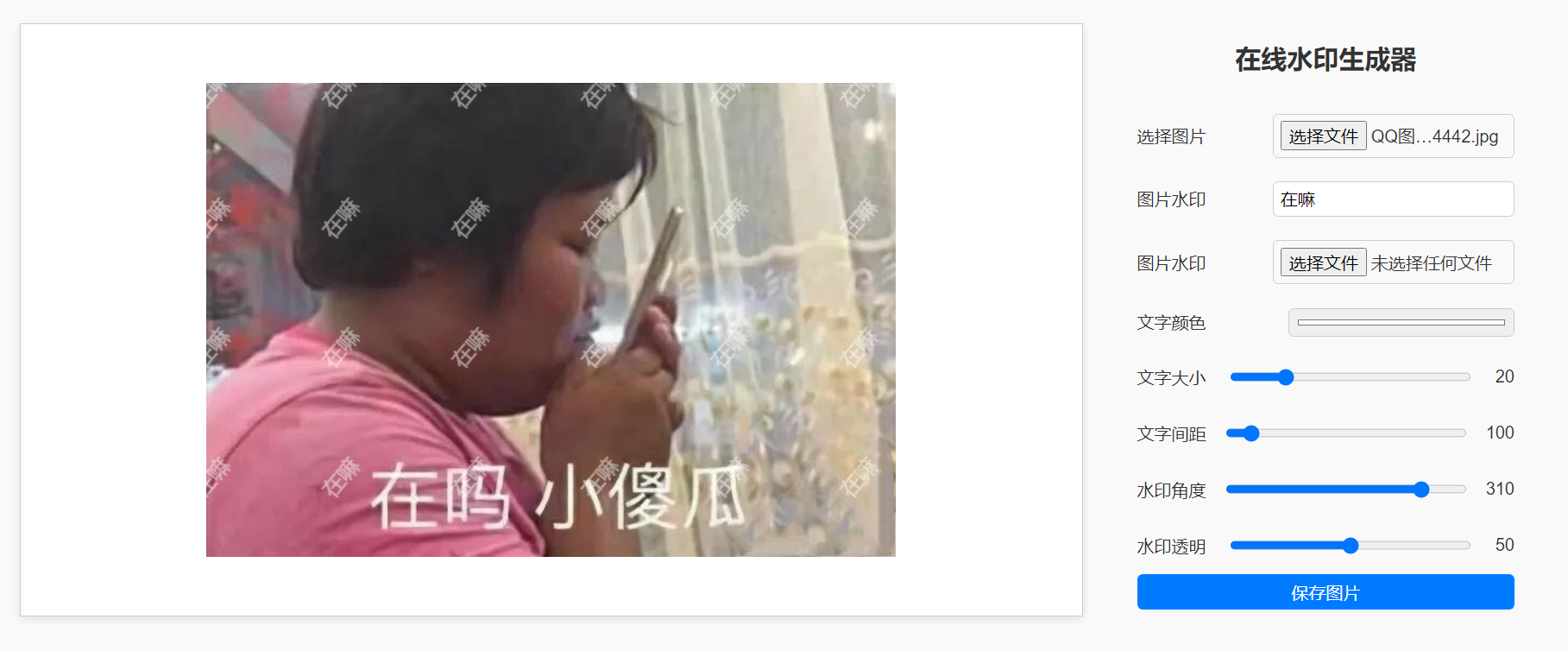
在线水印生成源码 前言演示网址:https://uurr.cn/myfile/page/watermark/支持文字水印和图片水印,支持自定义水印大小,颜色,旋转方向,间距,透明度效果代码<!DOCTYPE html> <html lang="zh"> <head> <meta charset="UTF-8"> <meta name="viewport" content="width=device-width, initial-scale=1.0"> <title>水印生成器</title> <style> body { font-family: Arial, sans-serif; background-color: #f9f9f9; color: #333; display: flex; padding: 50px; margin: 0; } .image-container { flex: 1; display: flex; justify-content: center; align-items: center; border: 1px solid #ccc; background-color: white; box-shadow: 0 2px 8px rgba(0, 0, 0, 0.1); margin-right: 50px; } .settings-container { flex: 0 0 350px; /* 允许放大,基础宽度为310px */ display: flex; flex-direction: column; margin-right: 50px; } h1 { margin-bottom: 20px; font-size: 24px; text-align: center; } input[type="file"], input[type="text"], input[type="color"], input[type="range"], button { padding: 6px; margin: 6px 0; border: 1px solid #ccc; border-radius: 5px; width: 50%; font-size: 16px; } input[type="file"], input[type="text"], input[type="color"], input[type="range"], button { padding: 6px; margin: 6px 0; border: 1px solid #ccc; border-radius: 5px; width: 60%; font-size: 16px; } button { background-color: #007bff; color: white; border: none; cursor: pointer; transition: background-color 0.3s; width: 100%; } button:hover { background-color: #0056b3; } canvas { max-width: 90%; height: auto; } .slider-label { margin-top:10px ; display: flex; justify-content: space-between; align-items: center; } </style> </head> <body> <div class="image-container"> <canvas id="canvas"></canvas> </div> <div class="settings-container"> <h1>在线水印生成器</h1> <div class="slider-label"> <label>选择图片</label> <input type="file" id="imageUpload" accept="image/*" placeholder="上传主图"> </div> <div class="slider-label"> <label>图片水印</label> <input type="text" id="watermarkText" placeholder="输入水印文字" value="输入水印文字"> </div> <div class="slider-label"> <span>图片水印</span> <input type="file" id="watermarkImageUpload" accept="image/*" placeholder="上传水印图片"> </div> <div class="slider-label"> <label for="watermarkColor">文字颜色</label> <input type="color" id="watermarkColor" value="#ffffff"> </div> <div class="slider-label"> <label for="watermarkSize">文字大小</label> <input type="range" id="watermarkSize" min="1" max="100" value="20"> <span id="watermarkSizeValue">20</span> </div> <div class="slider-label"> <label for="spacing">文字间距</label> <input type="range" id="spacing" min="90" max="300" value="100"> <span id="spacingValue">100</span> </div> <div class="slider-label"> <label for="rotation">水印角度</label> <input type="range" id="rotation" min="0" max="360" value="310"> <span id="rotationValue">310</span> </div> <div class="slider-label"> <label for="opacity">水印透明</label> <input type="range" id="opacity" min="0" max="100" value="50"> <span id="opacityValue">50</span> </div> <button class="save" id="saveButton">保存图片</button> </div> <script> const imageUpload = document.getElementById('imageUpload'); const watermarkImageUpload = document.getElementById('watermarkImageUpload'); const watermarkText = document.getElementById('watermarkText'); const watermarkColor = document.getElementById('watermarkColor'); const watermarkSize = document.getElementById('watermarkSize'); const spacing = document.getElementById('spacing'); const rotation = document.getElementById('rotation'); const opacity = document.getElementById('opacity'); const saveButton = document.getElementById('saveButton'); const canvas = document.getElementById('canvas'); const ctx = canvas.getContext('2d'); let mainImage, watermarkImage; // 初始化数值显示 const watermarkSizeValue = document.getElementById('watermarkSizeValue'); const spacingValue = document.getElementById('spacingValue'); const rotationValue = document.getElementById('rotationValue'); const opacityValue = document.getElementById('opacityValue'); imageUpload.addEventListener('change', handleImageUpload); watermarkImageUpload.addEventListener('change', handleWatermarkImageUpload); watermarkText.addEventListener('input', generateWatermarkedImage); watermarkColor.addEventListener('input', generateWatermarkedImage); watermarkSize.addEventListener('input', () => { watermarkSizeValue.textContent = watermarkSize.value; // 更新文字大小数值 generateWatermarkedImage(); }); spacing.addEventListener('input', () => { spacingValue.textContent = spacing.value; // 更新间距数值 generateWatermarkedImage(); }); rotation.addEventListener('input', () => { rotationValue.textContent = rotation.value; // 更新旋转角度数值 generateWatermarkedImage(); }); opacity.addEventListener('input', () => { opacityValue.textContent = opacity.value; // 更新透明度数值 generateWatermarkedImage(); }); saveButton.addEventListener('click', saveImage); function handleImageUpload(event) { const file = event.target.files[0]; if (file) { const reader = new FileReader(); reader.onload = function (e) { mainImage = new Image(); mainImage.src = e.target.result; mainImage.onload = () => { canvas.width = mainImage.width; canvas.height = mainImage.height; generateWatermarkedImage(); } } reader.readAsDataURL(file); } } function handleWatermarkImageUpload(event) { const file = event.target.files[0]; if (file) { const reader = new FileReader(); reader.onload = function (e) { watermarkImage = new Image(); watermarkImage.src = e.target.result; watermarkImage.onload = generateWatermarkedImage; // 当图片加载完成时生成水印 } reader.readAsDataURL(file); } } function generateWatermarkedImage() { if (!mainImage) return; ctx.clearRect(0, 0, canvas.width, canvas.height); ctx.drawImage(mainImage, 0, 0); const size = parseInt(watermarkSize.value); const spacingValue = parseInt(spacing.value); const color = watermarkColor.value; const angle = parseInt(rotation.value) * (Math.PI / 180); // 角度转换为弧度 const alpha = parseInt(opacity.value) / 100; // 透明度转换为小数 const rows = Math.ceil(canvas.height / (size + spacingValue)); const cols = Math.ceil(canvas.width / (size + spacingValue)); for (let i = 0; i < rows; i++) { for (let j = 0; j < cols; j++) { const x = j * (size + spacingValue); const y = i * (size + spacingValue) + size; // +size 确保文字不会被遮挡 ctx.save(); // 保存当前状态 ctx.translate(x + size / 2, y - size / 2); // 移动到水印中心 ctx.rotate(angle); // 旋转 if (watermarkText.value) { ctx.font = `${size}px Arial`; ctx.fillStyle = color; ctx.globalAlpha = alpha; // 设置透明度 ctx.fillText(watermarkText.value, -ctx.measureText(watermarkText.value).width / 2, 0); // 绘制文字,中心对齐 } if (watermarkImage) { ctx.globalAlpha = alpha; // 设置透明度 ctx.drawImage(watermarkImage, -size / 2, -size / 2, size, size); // 假设图片水印也是方形 } ctx.restore(); // 恢复状态 } } ctx.globalAlpha = 1; // 重置透明度 } function saveImage() { const link = document.createElement('a'); link.download = 'watermarked-image.png'; link.href = canvas.toDataURL('image/png'); link.click(); } </script> </body> </html>代码详解HTML结构: 标签:为文件输入框提供描述。在用户点击标签时,可以直接触发文件选择窗口。 <input type="file"> :创建一个文件上传输入框,并设置accept属性,限制用户选择的文件类型为图片。 标签:用于显示用户当前选择的文件名,初始提示文本为“没有选择文件”。JavaScript函数:updateFileName()函数在用户选择文件时被调用。input.files是一个FileList对象,包含用户选择的文件。如果用户选择了文件,就会更新的文本内容为文件名;如果没有选择文件,则保持默认提示。
-
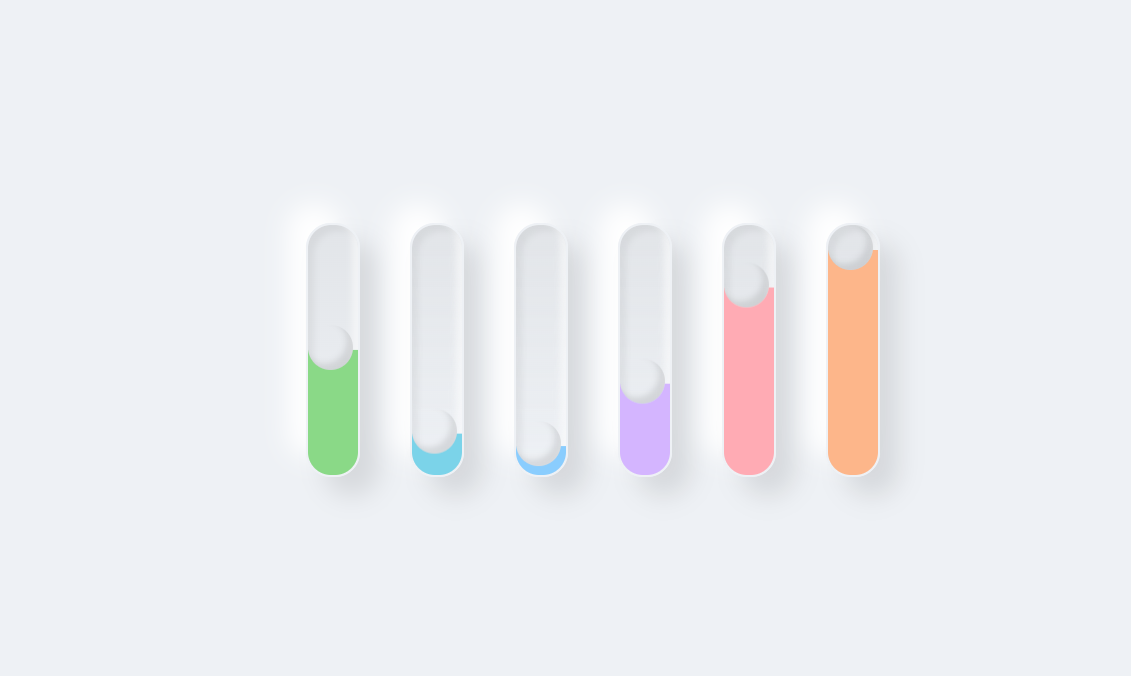
分享一个css全屏加载特效 忘记在哪个网站扒来的了 ::(委屈)效果CSS #loading { position: fixed; width: 100%; height: 100vh; z-index: 9999; background-color: #eef1f5; top: 0; } .loading { display: flex; flex-direction: row; justify-content: center; align-items: center; height: 100vh; } .loading div { position: relative; min-width: 40px; height: 200px; background: linear-gradient(to bottom, rgba(0, 0, 0, 0.05), #eef1f5); margin: 20px; border-radius: 20px; border: 2px solid #eef1f5; box-shadow: 15px 15px 20px rgba(0, 0, 0, 0.1), -15px -15px 20px #fff, inset -5px -5px 5px rgba(255, 255, 255, 0.5), inset 5px 5px 5px rgba(0, 0, 0, 0.05); overflow: hidden; } .loading div::before { content: ""; position: absolute; top: 0; left: 0; width: 36px; height: 36px; border-radius: 50%; box-shadow: inset -5px -5px 5px rgba(0, 0, 0, 0.1), 0 420px 0 400px lightskyblue; animation: animate 2s ease-in-out infinite; animation-delay: calc(var(--x) * -0.3s); transform: translateY(160px); } @keyframes animate { 0% { transform: translateY(160px); filter: hue-rotate(0deg); } 50% { transform: translateY(0px); filter: hue-rotate(180deg); } 100% { transform: translateY(160px); filter: hue-rotate(360deg); } }HTML 放在body开头即可 <!-- 懒加载组件 --> <div id="loading"> <div class="loading"> <div style="--x:0"></div> <div style="--x:1"></div> <div style="--x:2"></div> <div style="--x:3"></div> <div style="--x:4"></div> <div style="--x:5"></div> </div> </div>JS最后加载完成使用js删除,放在body尾部即可 <script> // 停止懒加载,展示页面 window.addEventListener('load', function () { var loading = document.getElementById('loading'); loading.parentNode.removeChild(loading); }); </script>
-
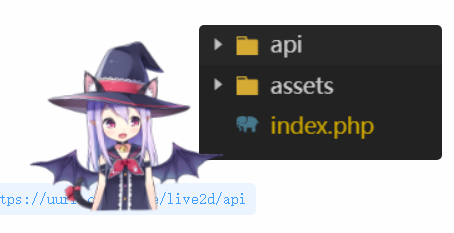
给网站加个LIVE2D 前言之前其实我有写过这个,但是发现好像有一点写漏了,今天重新写一个吧下载所需文件下载:https://wwkm.lanzouf.com/irqig0tl9wkh效果示例参考我网站的dome:https://uurr.cn/myfile/live2d/文件分为api和assetsapi是模型的接口,这个可以供别人使用也可以使用别人的,assets则是一些资源什么的你可以引用我网站的api资源 https://uurr.cn/myfile/live2d/api 接口下载好后在assets/waifu-tips.min.js文件中搜索 ;live2d_settings.modelAPI=" 将你的或者我的api接口填上去就像这样页面引用页面引用示例,要注意这里的目录别到时候引用错了<html xmlns="http://www.w3.org/1999/xhtml"> <head> <meta http-equiv="Content-Type" content="text/html; charset=UTF-8" /> <title>Live2D 看板娘 v1.4 / Demo 1</title> <link rel="stylesheet" type="text/css" href="assets/waifu.min.css?v=1.4.2"/> </head> <body style="font-family: 'Microsoft YaHei';"> <!-- waifu-tips.js 依赖 JQuery 库 --> <script src="assets/jquery.min.js?v=3.3.1"></script> <!-- 实现拖动效果,需引入 JQuery UI --> <script src="assets/jquery-ui.min.js?v=1.12.1"></script> <div class="waifu"> <!--<div class="waifu-tips"></div>--> <canvas id="live2d" class="live2d"></canvas> <!--<div class="waifu-tool">--> <!-- <span class="fui-home"></span>--> <!-- <span class="fui-chat"></span>--> <!-- <span class="fui-eye"></span>--> <!-- <span class="fui-user"></span>--> <!-- <span class="fui-photo"></span>--> <!-- <span class="fui-info-circle"></span>--> <!-- <span class="fui-cross"></span>--> <!--</div>--> </div> <script src="assets/waifu-tips.min.js?v=1.4.2"></script> <script src="assets/live2d.min.js?v=1.0.5"></script> <script type="text/javascript"> /* 可直接修改部分参数 */ live2d_settings["modelId"] = 1; // 默认模型 ID live2d_settings["modelTexturesId"] = 87; // 默认材质 ID live2d_settings["modelStorage"] = false; // 不储存模型 ID live2d_settings["canCloseLive2d"] = false; // 隐藏 关闭看板娘 按钮 live2d_settings["canTurnToHomePage"] = false; // 隐藏 返回首页 按钮 live2d_settings["waifuSize"] = "160x160"; // 看板娘大小 live2d_settings["waifuTipsSize"] = "570x150"; // 提示框大小 live2d_settings["waifuFontSize"] = "30px"; // 提示框字体 live2d_settings["waifuToolFont"] = "36px"; // 工具栏字体 live2d_settings["waifuToolLine"] = "50px"; // 工具栏行高 live2d_settings["waifuToolTop"] = "-60px"; // 工具栏顶部边距 live2d_settings["waifuDraggable"] = "unlimited"; // 拖拽样式 live2d_settings["waifuDraggableRevert"] = false; /* 在 initModel 前添加 */ initModel("assets/waifu-tips.json?v=1.4.2") </script> </body> </html>joe主题后台引用示例如何你要在其它地方比如joe主题等使用的话就直接将body的内容放在你主题后台设 - 全局设置 - 自定义中即可 <!-- waifu-tips.js 依赖 JQuery 库 --> <script src="assets/jquery.min.js?v=3.3.1"></script> <!-- 实现拖动效果,需引入 JQuery UI --> <script src="assets/jquery-ui.min.js?v=1.12.1"></script> <div class="waifu"> <!--<div class="waifu-tips"></div>--> <canvas id="live2d" class="live2d"></canvas> <!--<div class="waifu-tool">--> <!-- <span class="fui-home"></span>--> <!-- <span class="fui-chat"></span>--> <!-- <span class="fui-eye"></span>--> <!-- <span class="fui-user"></span>--> <!-- <span class="fui-photo"></span>--> <!-- <span class="fui-info-circle"></span>--> <!-- <span class="fui-cross"></span>--> <!--</div>--> </div> <script src="assets/waifu-tips.min.js?v=1.4.2"></script> <script src="assets/live2d.min.js?v=1.0.5"></script> <script type="text/javascript"> /* 可直接修改部分参数 */ live2d_settings["modelId"] = 1; // 默认模型 ID live2d_settings["modelTexturesId"] = 87; // 默认材质 ID live2d_settings["modelStorage"] = false; // 不储存模型 ID live2d_settings["canCloseLive2d"] = false; // 隐藏 关闭看板娘 按钮 live2d_settings["canTurnToHomePage"] = false; // 隐藏 返回首页 按钮 live2d_settings["waifuSize"] = "160x160"; // 看板娘大小 live2d_settings["waifuTipsSize"] = "570x150"; // 提示框大小 live2d_settings["waifuFontSize"] = "30px"; // 提示框字体 live2d_settings["waifuToolFont"] = "36px"; // 工具栏字体 live2d_settings["waifuToolLine"] = "50px"; // 工具栏行高 live2d_settings["waifuToolTop"] = "-60px"; // 工具栏顶部边距 live2d_settings["waifuDraggable"] = "unlimited"; // 拖拽样式 live2d_settings["waifuDraggableRevert"] = false; /* 在 initModel 前添加 */ initModel("assets/waifu-tips.json?v=1.4.2") </script>